Use Parameter Palette to keep the few controls you change most often beside the image or clip you are making.
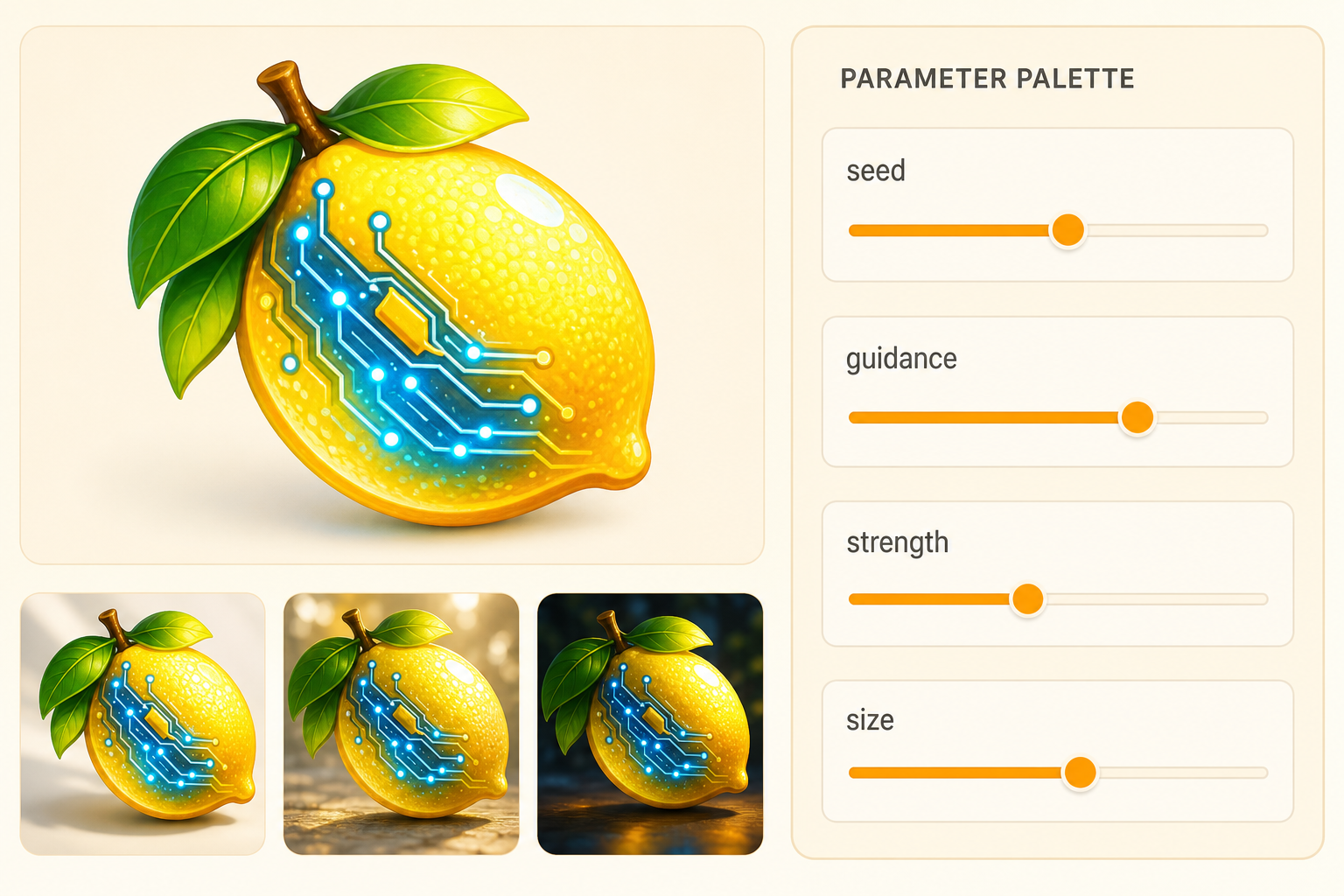
Parameter Palette mirrors selected Pipe controls in one compact panel. A pinned control still changes the same Pipe field; pinning only gives you a faster place to reach it.
Make the palette useful #
- Pin a control from the Pipe configurator.
- Add only controls you expect to change across nearby runs.
- Arrange them in the order you make decisions.
- Make a small set of variations.
- Remove controls that stayed untouched.
A useful palette often contains one content control, one strength or guidance control, a seed, and the relevant image or video size. The right set depends on the Pipe.
What stays with the workspace #
The palette points to fields in the active Pipe. Core and Expanded placement remains part of the Pipe. The pinned selection belongs to the workspace and can return with a saved Canvas where supported.
If a control is missing #
Confirm that the control is exposed by the Pipe. If the palette feels crowded, remove anything you did not change in the current comparison. Rename an unclear label in the Pipe editor, and save a Canvas when you want the arrangement later.