
Crop, rotate, flip, add lettering, or paint a mask without changing the source unless you explicitly choose to overwrite it.
Before you start #
Open an image from Gallery or Image Viewer and choose Transform. Choose Edit for a finished image or Mask for a Pipe input.
Transform has Edit and Mask modes, undo and redo, crop and orientation tools, lettering, and clear save choices. Studio autosaves the working canvas while you edit; Export creates a new project file, while Overwrite replaces the source.
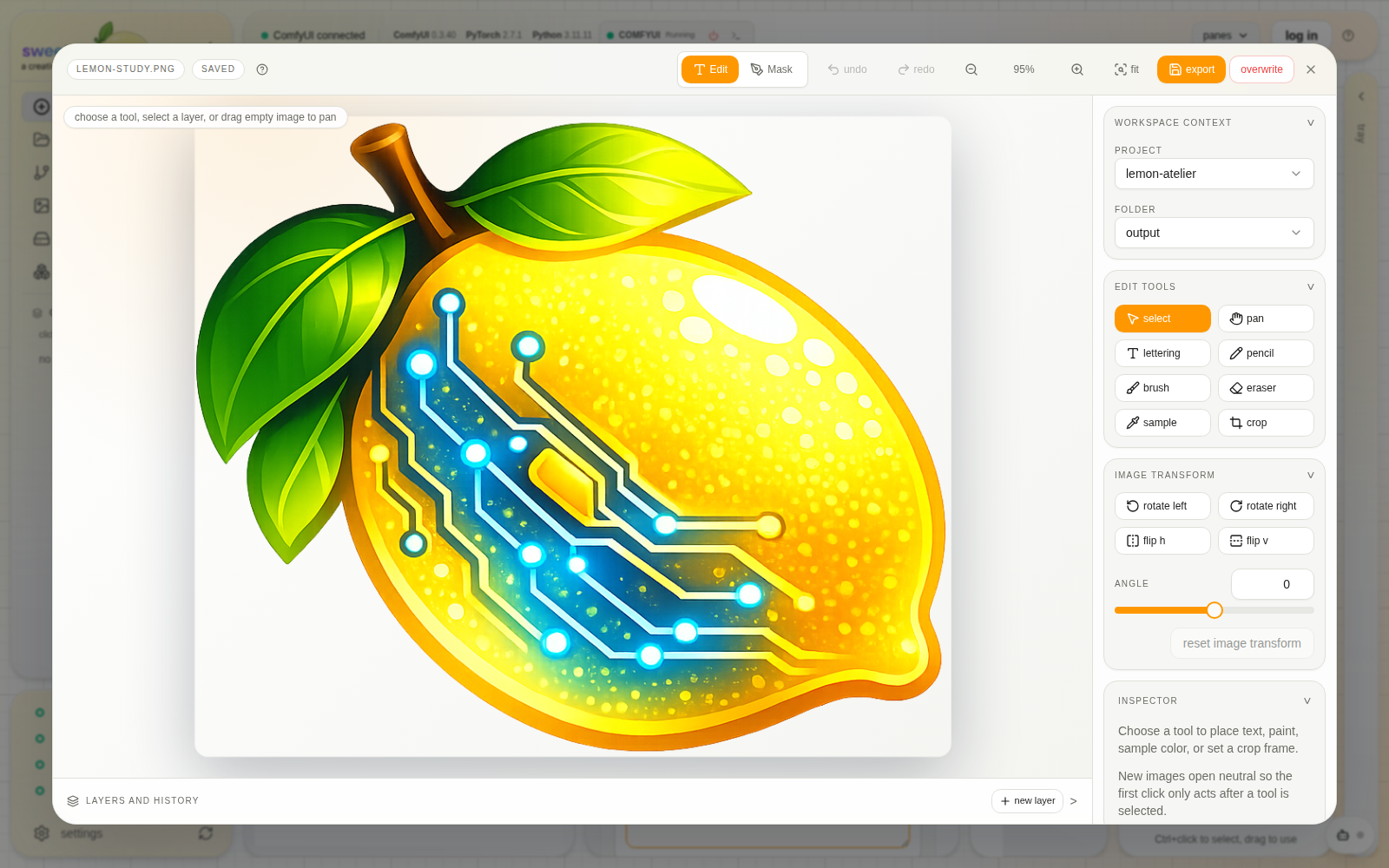
The image, tools, history, destination folder, and save choice stay in one workspace.
Edit an image #
- Choose Edit.
- Crop, rotate, or flip as needed.
- Add lettering only with a font you are licensed to use.
- Review the full composition.
- Choose Export for a new file. Choose Overwrite only when you mean to replace the source.
Create a mask #
- Choose Mask.
- Paint the area the receiving Pipe expects.
- Use undo and redo to refine the edge.
- Save to the project’s masks folder or the folder selected for this task.
- Drag the final mask into a compatible Pipe field.
Import licensed TTF, OTF, WOFF, or WOFF2 files in Settings → Studio → Fonts. Imported fonts are available to Transform on this machine; the font file and its license remain your responsibility.
Related docs #
Expand an image (outpainting) #
Open Transform from an image, then select Expand. Drag a blue edge or corner outward, or enter padding for each side. Width, height, aspect presets and a nine-position anchor provide precise placement. The existing composition is never stretched. An active crop becomes the starting composition; rotated images and visible layers retain their document coordinates.
The new area is selected for generation. Seam transition controls how far that selection enters the retained image, starting at 32 px; choose 0 to protect the whole retained image. Edit generation mask opens the usual brushes, shapes, feather and grow/shrink controls across the entire expanded frame. White coverage generates; black preserves. Transparent holes begin selected. Changing the frame rebuilds the automatic border and keeps manual corrections in place.
Choose Use in Pipe, select a compatible local Pipe and engine, and return to the existing generation interface. Prepared image and mask fields are populated together. Prompt, checkpoint, seed and generation controls remain there. This action does not generate. The bundled sts_outpainter uses ordinary core ComfyUI nodes and composites through the final mask, preserving pixels outside the generated region. Select an installed compatible checkpoint through the normal model controls and dependency resolver.
The Pipe chooser checks actual graph connections and the selected engine’s installed nodes and required inputs. A node-version mismatch is shown before delivery. It supports a LoadImage image/alpha MASK route and a separate mask-image route through a verified converter. It excludes graphs that add their own padding. When a Pipe declares pixel alignment, use Add required padding to reach the displayed dimensions; the source is not resized. Other workflows can use Export image and mask to obtain the opaque image, grayscale coverage and alpha-encoded PNG.
The default outpainter saves PNG results even when your general generation preference is JPEG. This avoids compression changing protected pixels after the final masked composite. Imported Pipes use their normal output settings and require their own preservation check.
Prepared files are new files, and retries reuse completed preparation/upload work. The source file and editable draft remain available. Close and reopen Transform to continue editing. Generated results use the normal project, gallery, output selection and regeneration flow.
Agent Access supports a final outpaint_prepare operation in transform.literal_bulk, with nonnegative left, right, top, bottom and transition pixel values. It uses the same geometry, coverage polarity and preparation service and returns the derived image and mask references. Generation continues through the existing run APIs.