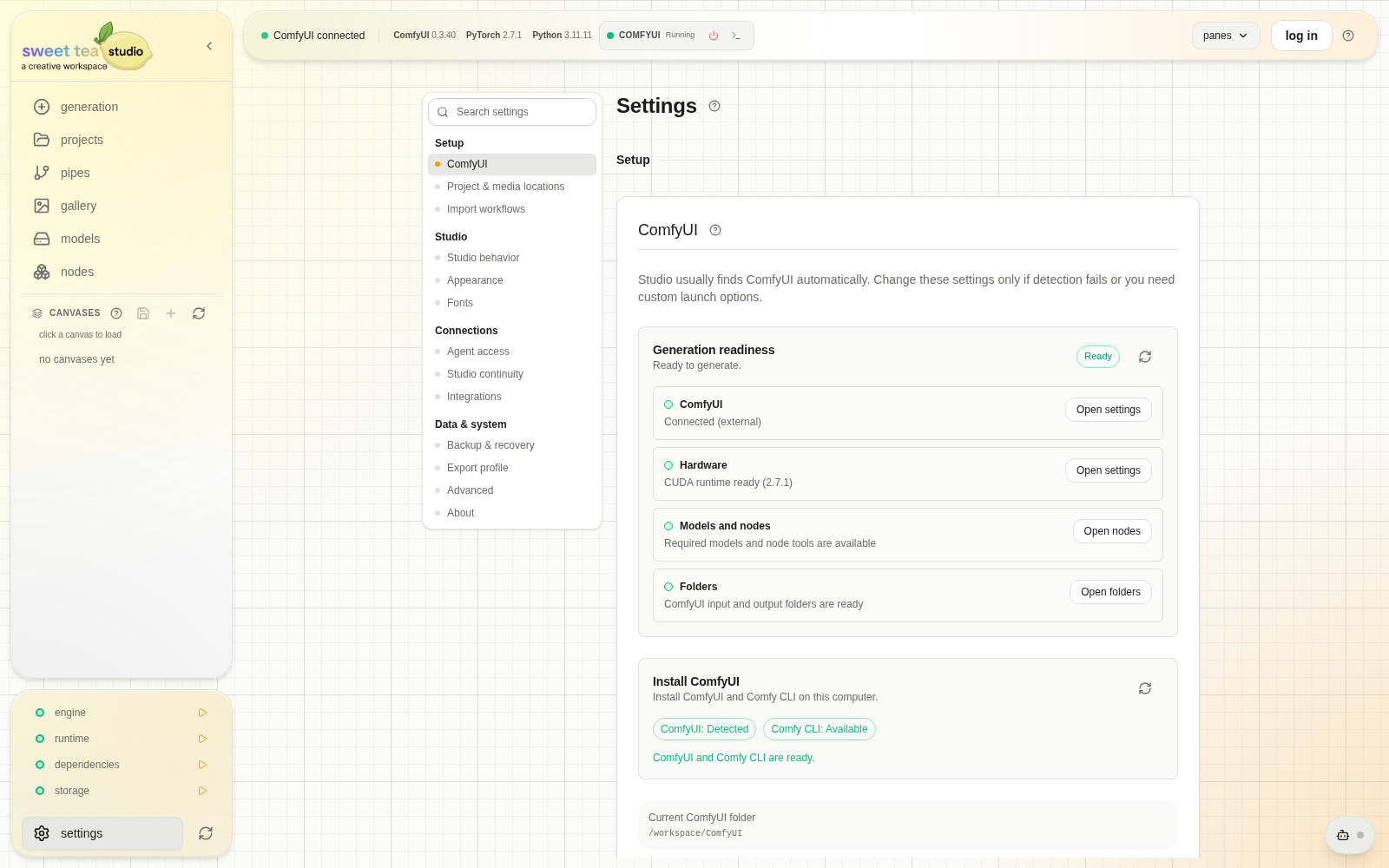
Settings is a searchable map of Studio setup, behavior, connections, data, and system controls. Use the left navigation on desktop or Settings sections on smaller screens. Search matches both visible labels and practical terms such as storage root, Civitai, backup, or agent.
Settings Map
| Group | Visible section | What it controls |
|---|---|---|
| Setup | ComfyUI | One-click setup, existing-install folder, launch arguments, and readiness |
| Setup | Project & media locations | ComfyUI input folder, project storage roots, and existing-media import |
| Setup | Import workflows | Discovery and batch import of existing ComfyUI workflows |
| Studio | Studio behavior | Generated image format and backend-published application settings |
| Studio | Appearance | System, built-in, and imported themes |
| Studio | Fonts | Fonts available to the Transform workspace |
| Connections | Agent access | Agent connections, scoped credentials, instructions, policy, approvals, and cloud runtimes |
| Connections | Cloud sync | Local-only/cloud mode, reconciliation, health, and repair |
| Connections | Integrations | Credentials for supported external providers |
| Data & system | Backup & recovery | Profile database health, backup policy, and image rescan |
| Data & system | Export profile | Portable archive of Studio profile data |
| Data & system | Advanced | Direct ComfyUI URL and advanced performance controls |
| Data & system | About | Version, updater, patch notes, installer repair, and feedback |
The overview can show Finish setup items when a blocking requirement is known. Select an item to jump to the owning section. Fix the named blocker rather than changing unrelated performance or sync settings.
ComfyUI
Use this section to make a local ComfyUI installation generation-ready. On supported Windows setups, one-click installation can install ComfyUI and Comfy CLI. For an existing install, select the folder containing main.py, configure only the launch arguments that install needs, and use the readiness checks to confirm the path.
This section controls the ComfyUI process Studio can launch. The network URL Studio uses to reach an engine is under Advanced.
Project & Media Locations
Set the ComfyUI input folder and manage project storage roots. A storage root is an existing absolute directory where Studio can create and discover project folders. Add roots to use several drives; remove a custom root to stop offering it for new work. Removing a root from Settings does not delete its files.
Use the existing-media import/rescan action when bringing an already populated directory under Studio management. The active ComfyUI input root is protected while it owns current engine routing.
Import Workflows
The importer discovers workflow files and ComfyUI history, groups equivalent graphs, and marks candidates that are ready, duplicate, or blocked. You can hide already imported items, allow Studio to drop disconnected/orphan branches when that repair is safe, and import selected ready candidates in a batch.
Review a blocked candidate's reason instead of forcing it through. A missing usable graph is different from a disconnected branch Studio can discard.
Studio Behavior
Choose the generated image format and edit application settings published by the backend. Each row identifies its current/effective source. A saved database value overrides the default or environment-provided value. Some backend-facing changes require a restart; the setting description identifies that requirement.
Appearance
Choose the system theme, a built-in Studio theme, or an imported JSON theme. System mode follows the operating-system preference. Theme changes affect Studio presentation, not generated media color or metadata.
Fonts
Import .ttf, .otf, .woff, or .woff2 files up to 10 MiB for Transform lettering. Fonts are stored in this machine's local app data. The current Settings surface imports fonts but does not list or remove them, so verify the file and your license before adding it.
Agent Access
Start with three plain choices:
- Agent name identifies the connection in activity and policy surfaces.
- Access level chooses a scoped preset such as View only, Prepare & ask, Create & organize, Build & configure, or Full access.
- Approval mode determines whether allowed actions can run directly or must be reviewed.
Then choose Same computer, Cloud, or Direct URL and copy the package Studio generates. Project visibility, global/project instructions, per-category allow/ask/block policy, usage limits, connected-agent keys, and cloud runtime controls remain separate boundaries. See Agent Access Client Recipes.
Cloud Sync
Sign in with a free Sweet Tea account, then choose local only or cloud enabled. The section reports last sync, lifecycle, backlog, drift, cloud profile, and entity-apply failures.
On first reconciliation, Studio can offer:
- keep cloud — adopt the cloud profile; unsynced local changes may be discarded;
- keep local — preserve local state by creating a new cloud profile identity; or
- merge to cloud — reconcile both sides into the cloud profile.
Use repair sync only for persistent drift after reading the warning and protecting important local data. It re-bootstraps local sync state from the cloud; it is not a generic refresh. See Studio-Web Continuity and Sync.
Integrations
Store credentials used by supported providers, including Civitai and optional Rule34 autocomplete access. Database-saved values take precedence over matching environment configuration. Clear a saved value when you intentionally want Studio to return to the environment-provided credential.
Third-party accounts, API limits, or provider costs remain the provider's boundary. They are separate from Sweet Tea's free product access.
Backup & Recovery
This section shows the active profile.db path, SQLite health, database size, WAL state, and available integrity/write diagnostics. You can configure a database-path override (restart required), check or install the SQLite CLI for deeper recovery, set automatic backup frequency and retention, create a backup immediately, and rescan images from disk.
An image rescan reconciles Gallery registration with files Studio can discover. It does not restore a database or move an image generated into the wrong project. Create a backup before repair, broad cleanup, or destructive sync reconciliation.
Export Profile
Export Profile creates a compressed bundle under ComfyUI's sweet_tea/ area containing portable profile information such as settings, Pipes, generation history, and the profile database. It is not a portfolio export and does not package every project image or selected output folder.
Back up project storage roots separately when you need a complete machine migration.
Advanced
Set the ComfyUI URL used for engine communication and adjust the advanced performance overrides exposed by the current backend. Each value shows where it came from and the effective value Studio uses.
Change one performance control at a time and compare the same Pipe, inputs, and image settings. A larger cache or polling interval cannot repair an unreachable engine, missing model, storage-path mismatch, or database integrity failure.
About
About shows backend and desktop-shell versions, Git SHA when available, updater and bridge state, structured patch notes, installer repair controls, and feedback. Include these version details and exact error text when reporting a problem; a screenshot of a generic failure without the version or triggering action is much harder to diagnose.
Troubleshooting
| Problem | First place to look |
|---|---|
| Studio cannot launch ComfyUI | ComfyUI: folder, arguments, and readiness |
| Studio launches it but cannot connect | Advanced: ComfyUI URL; then the engine indicator |
| New project destination is missing | Project & media locations: storage roots |
| Imported workflow is blocked | Import workflows: candidate status and dependency details |
| A setting changed but behavior did not | The row's effective source and restart requirement |
| Cloud state does not match local state | Cloud sync: lifecycle, backlog, drift, and entity failures |
| Agent cannot act | Agent access: scope, project visibility, pause state, approval mode, and category policy |
| Gallery misses files already on disk | Backup & recovery: rescan images from disk |
| External provider action is unauthorized | Integrations: saved credential and provider account state |
| UI and documentation appear to describe different builds | About: backend, shell, and patch-note versions |
For a layer-by-layer recovery process, continue with Data & Troubleshooting.