
Install the public desktop build, open it once, and confirm that the app can reach its local Studio service.
Before you start #
- Use a supported Windows or Linux desktop.
- Keep enough disk space for Studio, ComfyUI, models, and generated media. Models usually dominate the total.
- If your organization controls application installation, confirm that you may run a downloaded desktop package.
Install on Windows #
- Open the public Studio download page.
- Download the current Windows installer.
- Run the installer and keep the default location unless your environment requires another one.
- Launch ST Studio from the Start menu.
- Allow the desktop app and its local service to start together.
Windows security software may inspect or quarantine unsigned or newly published binaries. A blocked executable is an installation problem, not a ComfyUI connection problem. Keep the original installer and any security message so the package can be identified precisely.
Install on Linux #
- Download the current Linux package.
- Give the package execute permission when the format requires it.
- Launch it from your desktop environment or a terminal.
- Keep the terminal output if the desktop app closes before the interface appears.
Desktop integrations vary by distribution. The important first proof is that the app opens and its local service reports healthy; menu placement can be fixed separately.
Complete first-run setup #
Studio can guide a supported local ComfyUI installation through one-click setup, or use an installation you already manage. In Settings → Setup → ComfyUI, confirm the detected installation, launch target, ComfyUI folder, and any launch arguments. Readiness is based on the actual engine response, not merely on a saved path.
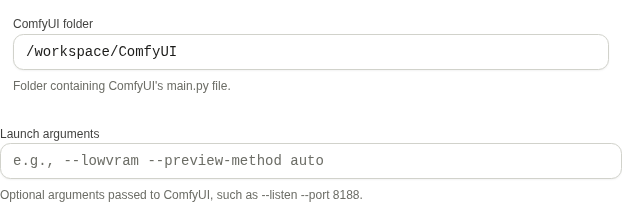
Studio separates detection, installation, and launch settings so you can see which part is ready.
What started #
The desktop app started its local Sweet Tea service and opened the Studio interface. ComfyUI is a separate generation engine. Studio may launch or supervise it, but a saved folder path alone does not show that it is connected.
If the first launch fails #
| Symptom | Check |
|---|---|
| No window appears | Installer integrity, security quarantine, and terminal output |
| Window opens but Studio stays offline | Backend startup evidence and port conflicts |
| Studio opens but ComfyUI is not ready | Continue with Connect ComfyUI |
| The package runs from a temporary location | Reinstall into a stable application location |