
Keep supported Studio setup in sync across installations connected to the same Sweet Tea account. Studio keeps working locally when the service is unavailable.
Before you start #
Sign in on each installation with the same Sweet Tea account. Back up an established profile and Project media before linking it. A linked profile stays bound to that account; signing into a different account does not move its data.
Availability. Studio v0.9.70 supports linking upgraded profiles without resetting local work, saves initial upload progress, and resumes interrupted linking and pending edits. Linking remains explicit: signing in alone does not upload the workspace. Keep a backup before the first link; use Studio sync to connect independent installations. Do not copy installation credentials with a profile.
When sync is enabled in a Studio release with durable replay, supported changes are saved locally and synced in the background. Pending edits resume after restart when the service is reachable. Deletions sync too. Project files, installed models, custom nodes, and ComfyUI stay on their own machines.
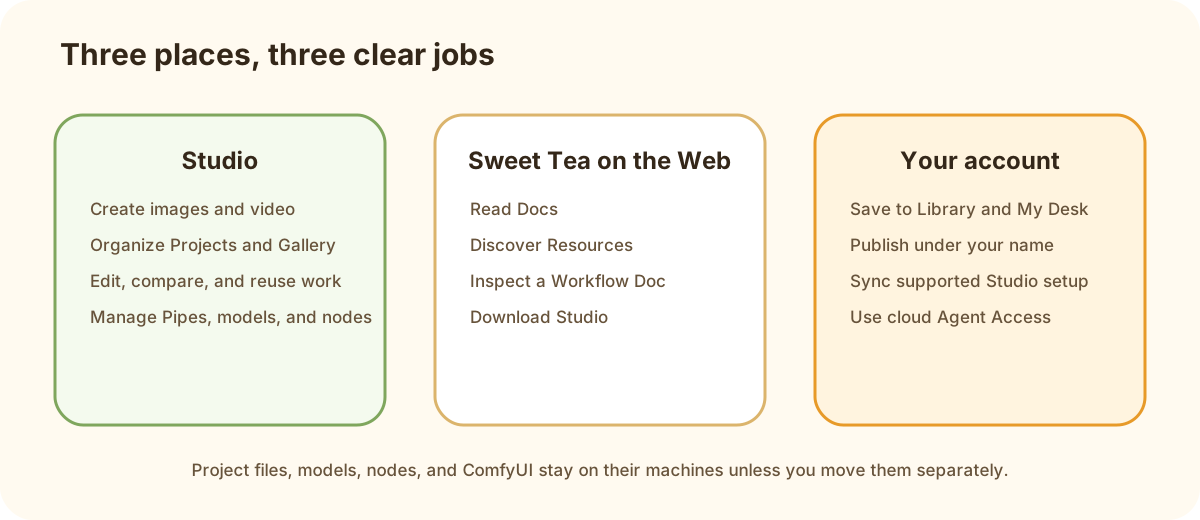
Supported Studio setup can sync through your account; Project media and ComfyUI installations stay local.
Link an installation #
- Sign in from Studio.
- Open Settings → Connections → Studio sync.
- Review the account and current device name.
- Choose Link this workspace.
- Leave Studio open while the initial state settles. Studio saves linking progress and resumes it after restart when the service and the correct account session are available.
- Confirm the same supported setup from the second installation.
What each status means #
| State | Meaning |
|---|---|
| Current | Supported setup has converged across linked installations |
| Sending or receiving | Changes are moving |
| Offline backlog | Local changes are saved and waiting for the service |
| Attention needed | A profile repair or account/device action needs review |
| Disabled | This installation keeps working locally without sync |
On a release with durable replay, if two installations edit the same supported item while offline, the latest authored change wins automatically. Deletes are retained across sync, while distinct Pipes keep distinct identities even when their content is similar. Studio does not ask you to choose a local or cloud winner.
What stays local #
Project media, installed models, custom nodes, ComfyUI, credentials, and machine-specific settings remain on each installation. Move those separately when needed.
Sync authorization is stored separately from the travelling profile in private installation files. A desktop keyring or credential service is not required. Existing native-keyring credentials are imported when that service is available.
On Linux, keep ${XDG_CONFIG_HOME:-$HOME/.config}/sweettea/.machine on persistent local storage. Container operators should bind-mount that directory along with their profile data. Preserve it across container restarts, keep it private to the Studio user, and exclude it from profile backups or cloud mirrors. Each independent installation needs its own directory; do not copy it to another device. POSIX directory and file permissions are restricted to 0700 and 0600. Windows uses the current user's application-data directory and its inherited access controls. macOS keeps sync credentials under ~/Library/Application Support/SweetTea/.machine, outside the travelling profile.