
Open an image or clip at a useful size, review what was saved with it, and choose what to do next.
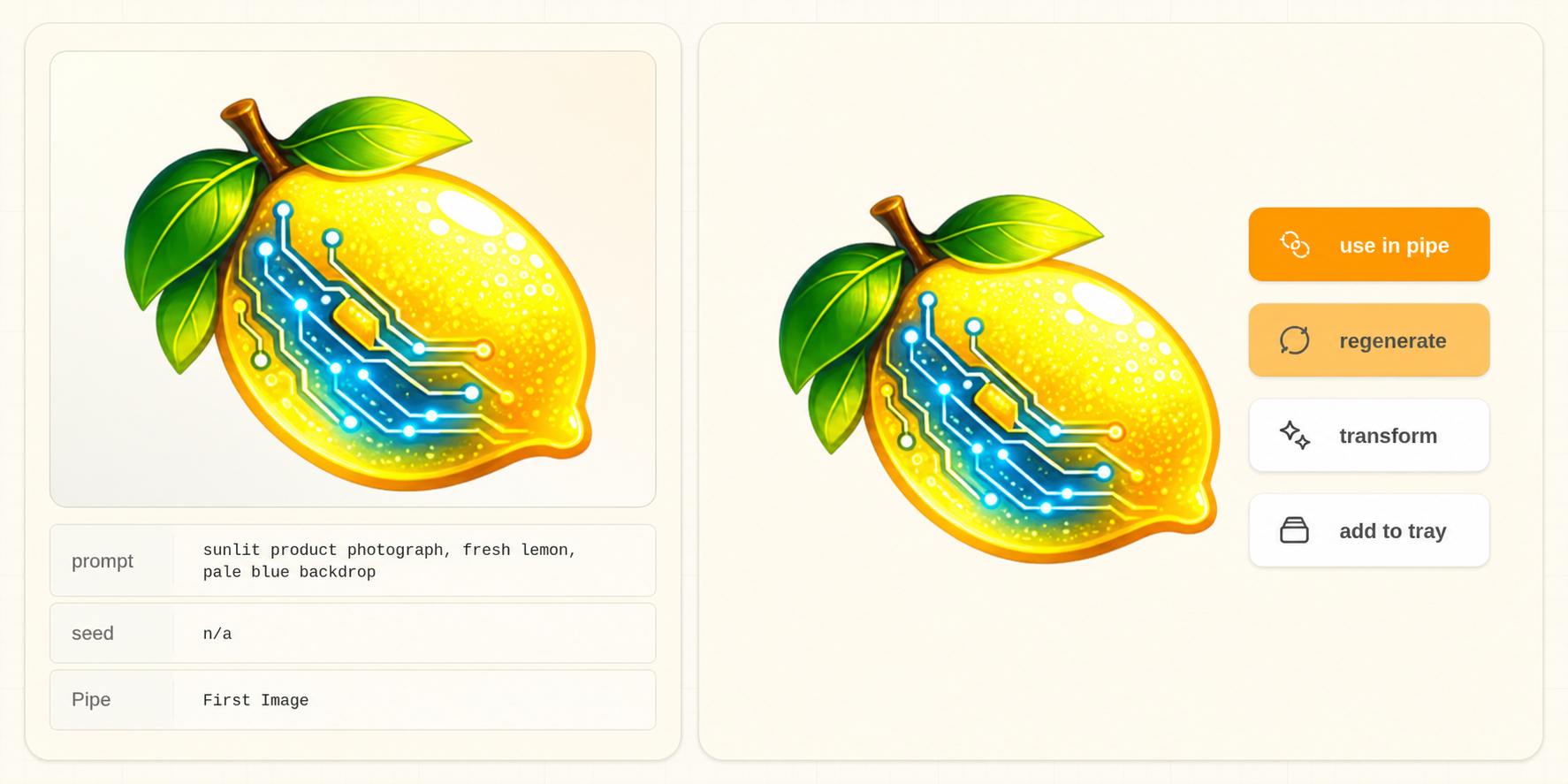
Image Viewer keeps the selected image or clip beside its saved prompt, settings, and workflow details. Move through nearby project files, use compatible values in a Pipe, make another version, open Transform, add the media to Media Tray, download it, or move it to trash.
Review the image or clip #
- View the image at a useful scale or play the clip.
- Read the prompt and available settings.
- Confirm the project and folder.
- Inspect workflow or provenance data when reproducibility matters.
- Choose one explicit next action.
Choose a next action #
| Action | Best for |
|---|---|
| Use in Pipe | Send compatible values or media into a Pipe you choose |
| Regenerate | Start another version with the same Pipe and saved settings |
| Transform | Crop, rotate, letter, or create a mask |
| Media Tray | Compare the image or clip or drag it into an input |
| Download | Creating a copy outside project storage |
| Delete | Move an unwanted project file to Trash, where it can still be restored |
What may be saved with an image #
Studio may save prompt text, settings, the source workflow, and relationships to source images. What is available depends on the workflow and file format. See See How an Image Was Made for details and limitations.