
Browse the model files available to the connected ComfyUI installation and understand how Studio identifies them.
Before you start #
Connect the engine whose model folders you want to inspect. Model inventory follows that installation and its configured paths.
Models combines detected ComfyUI folders, targeted downloads, queue control, installed files, missing-model repair, and catalog details that help identify a file. Use it to answer both “where should this file live?” and “which model is this?”
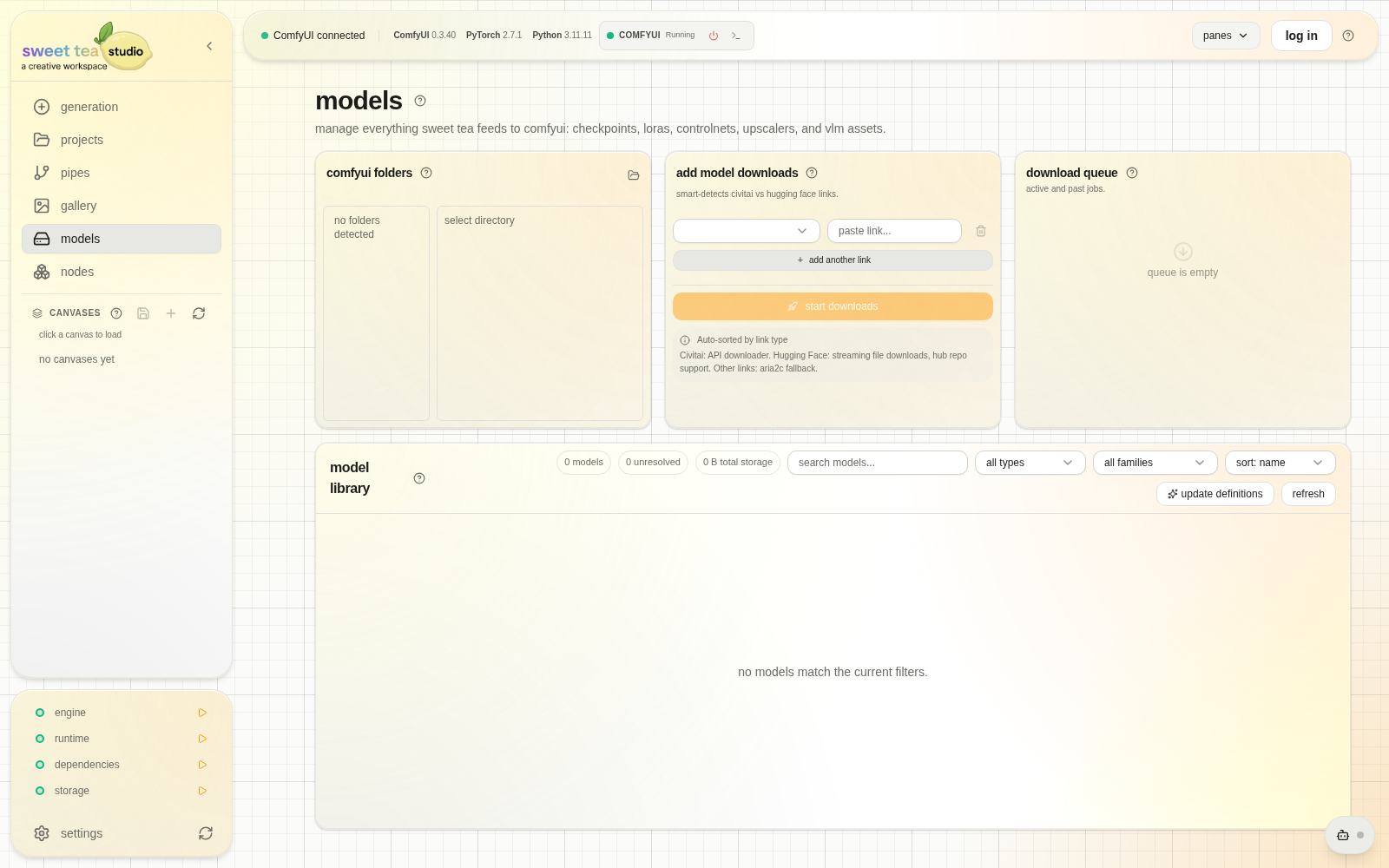
Folder detection, acquisition, and installed inventory are visible as separate parts.
The folder browser shows the detected ComfyUI model root and its directories for each model kind. A connection can also provide its own model root. Place a model in the kind expected by the workflow, then refresh or revalidate so ComfyUI reports it.
Browse installed models #
- Open the model library.
- Search by file or identified name.
- Filter by kind or family.
- Open details to review path, size, identity, and available previews.
- Before deleting, open every Pipe you still rely on and compare its dependency report with the model’s exact filename and relative path.
- Delete the file only when those manual checks show it is no longer required.
Studio does not currently provide a global “where used” report for model files. If you cannot confidently check the Pipes that matter, keep the model. The delete confirmation permanently removes the file from the connected engine; it does not prove that no Pipe depends on it.
Model Library supports installed-model search, kind and family filters, detail inspection, preview paging, deletion, and catalog matching. A catalog match adds useful names and previews to a local file; ComfyUI still loads the actual file from its path on the connected engine.