
Choose where Projects live and bring existing project files into Gallery.
Before you start #
Use a local or mounted folder that stays available while you work. Make sure it has enough space and is included in your backups.
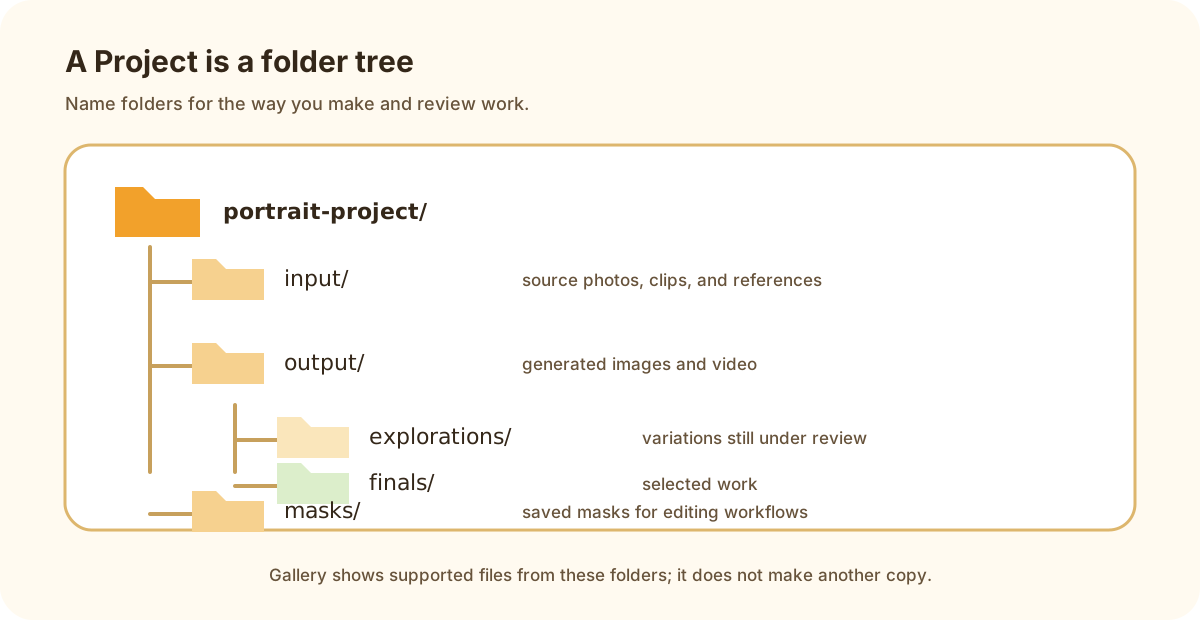
A Project is an ordinary folder tree that you can organize around your work.
Add a project location #
- Open Settings → Setup → Project & media locations.
- Add the folder that should contain Projects.
- Put your preferred default location first.
- Create a Project there.
- Generate a small image and confirm it appears in the expected folder.
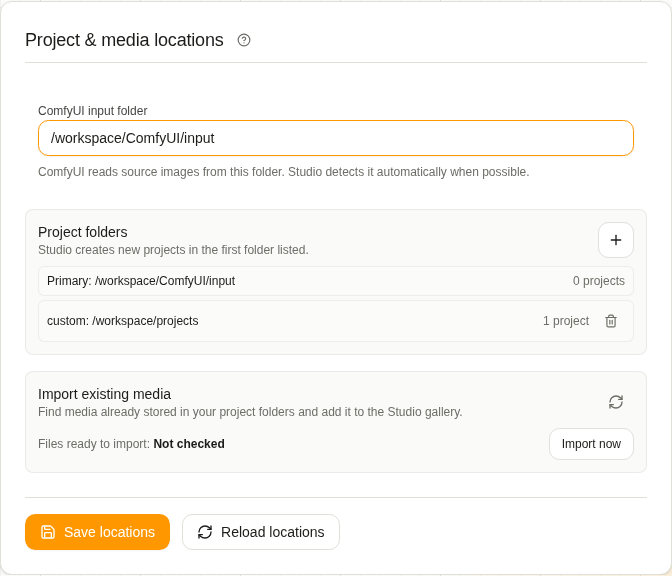
Import existing media adds supported files to Gallery without creating another copy.
Import existing media #
Use Import existing media after adding a project location or copying files into it. Studio scans configured Project folders and makes supported files visible in Gallery. Keep the folder structure intact while the scan completes.
Know the nearby locations #
| Location | What it holds |
|---|---|
| Project location | Your Project folders and media |
| Project input/output/masks | Source media, finished work, and masks inside one Project |
| ComfyUI input folder | Temporary copies a workflow needs to read |
| Profile database | Settings, Pipe definitions, and generation records |