Animate a still image or generate a short video in Studio. Open a video Pipe, set the creative controls, generate, and review the clip in the same project as your images.
Before you start #
- Studio and ComfyUI are connected.
- Choose a project folder with enough free storage for frames, previews, and final media.
Video workflows vary more than image workflows. The Pipe defines whether it begins from text, an image, a sequence, or another clip.
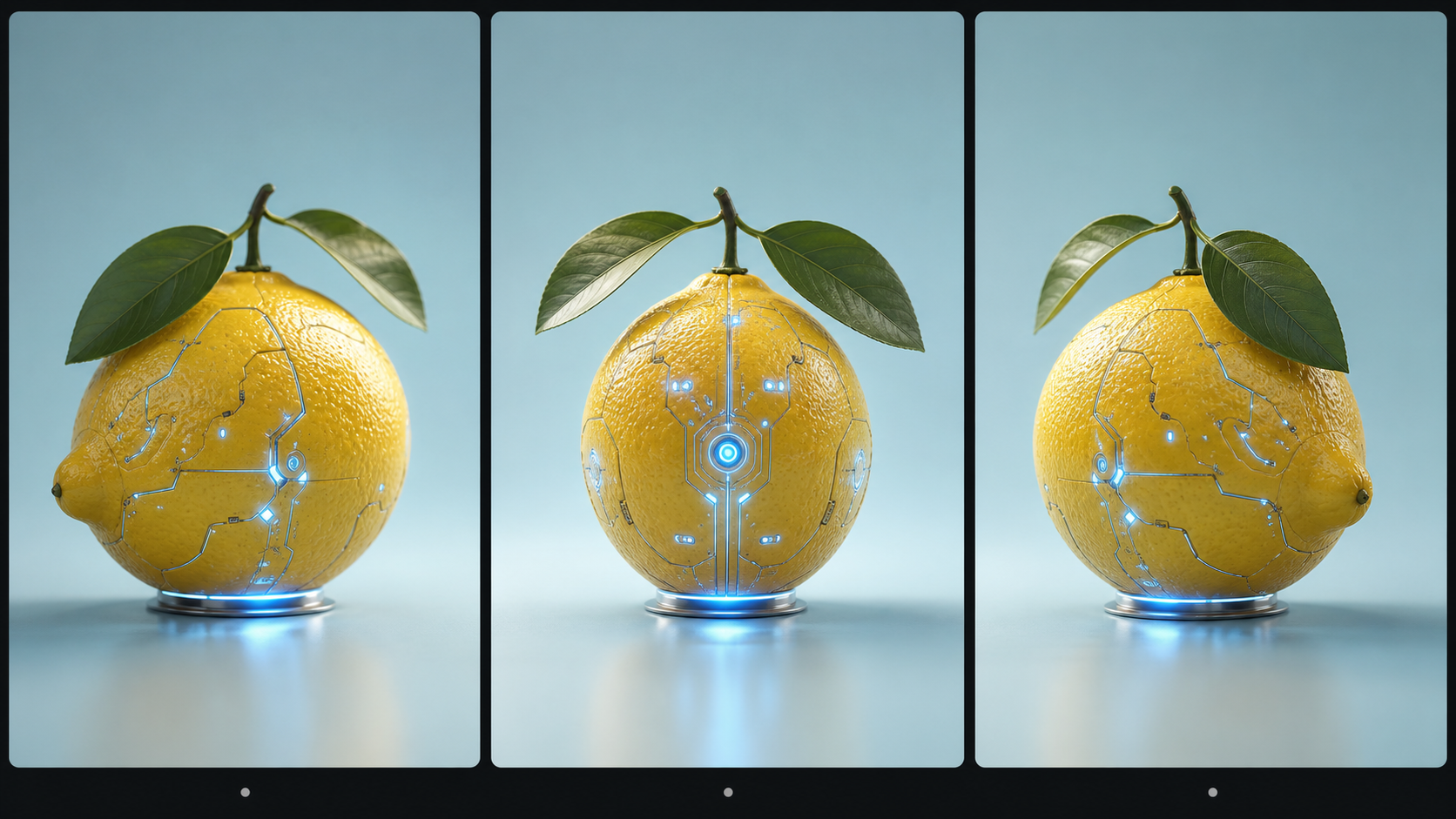
A filmstrip makes motion visible: compare the first, middle, and last frame before tuning a longer clip.
Open a video Pipe #
Fresh profiles do not currently include a bundled video starter. Before opening Generation:
- Find a video-capable Pipe in Web Resources, or export a ComfyUI video workflow in API format.
- Import the
.teapackage or API workflow through Import and migrate Pipes. - Open the imported Pipe and check what it needs.
- Install the exact models and custom nodes it names.
- Revalidate the Pipe and confirm that the workflow ends with a video format Studio supports.
- Read the Pipe’s documented frame count, dimensions, frame rate, and required source media.
Make the video #
- Open Generation and select your project and output folder.
- Choose the video Pipe.
- Supply the required prompt and source media.
- Confirm frame count, dimensions, frame rate, and any motion controls exposed by the Pipe.
- Keep the first batch at one.
- Select Generate.
- Follow progress in the Generation Feed. A video may spend a long time in one ComfyUI node.
- When the run completes, open the clip from Gallery and play it in the viewer.
Start from an image you already like #
Open it in the viewer and choose Use in Pipe, then select an image-to-video Pipe. Review the image field and describe the motion. The input handoff prepares the job; select Generate when it is ready.
What gets saved #
Studio sends the video workflow, your settings, and any source images or clips to ComfyUI. When the clip finishes, Studio saves it in the chosen project folder with the saved generation recipe and the output details returned by the workflow.
A Pipe is video-capable when its workflow returns a video format Studio can save.
Tune one dimension at a time #
| Goal | Change first |
|---|---|
| Faster proof run | Frame count or dimensions |
| Smoother motion | Workflow-specific motion controls or frame rate |
| More consistent motion | Source frames, conditioning, seed, or model choice |
| Smaller file | Dimensions, duration, or encoding control exposed by the Pipe |
If a generation exhausts memory, reduce the frame count or dimensions before changing unrelated Studio settings. If it completes in ComfyUI but no clip appears in Studio, check the workflow’s final video node and file format.