Sweet Tea Studio
FAQGet startedPipesGuide
Get the app

© 2026 sweet tea studio

GuidePlansPrivacyTerms
Guide Overview
Getting Started
IntroductionCore ConceptsInstallation & Setup
Core Features
ComfyUI IntegrationPrompt StudioDynamic FormsPrompt ConstructorPipes & WorkflowsAdvanced Pipe Management
Organization & Results
Projects OrganizationGallery & ResultsImage Viewer & MetadataCollections & Curation
Advanced Management
Models ManagerExtension ManagerPrompt Library & SnippetsTags & SuggestionsConnecting Your AccountPerformance MonitoringData & Troubleshooting
Hosted Infrastructure
Hosted GPU Workflows
Web Companion
Web Platform OverviewWeb Account, Settings, and BillingWeb Pipes Discovery and PublishingWeb Library, My Desk, Devices, and TokensStudio-Web Continuity and Sync
Reference
Quick Reference
Guide Overview
Getting Started
IntroductionCore ConceptsInstallation & Setup
Core Features
ComfyUI IntegrationPrompt StudioDynamic FormsPrompt ConstructorPipes & WorkflowsAdvanced Pipe Management
Organization & Results
Projects OrganizationGallery & ResultsImage Viewer & MetadataCollections & Curation
Advanced Management
Models ManagerExtension ManagerPrompt Library & SnippetsTags & SuggestionsConnecting Your AccountPerformance MonitoringData & Troubleshooting
Hosted Infrastructure
Hosted GPU Workflows
Web Companion
Web Platform OverviewWeb Account, Settings, and BillingWeb Pipes Discovery and PublishingWeb Library, My Desk, Devices, and TokensStudio-Web Continuity and Sync
Reference
Quick Reference

Prompt Studio

Core Features · Sweet Tea Studio Documentation

On this page
  • Workspace Layout
  • Running Your First Generation
  • Generation States
  • Generation Readiness Checks
  • Tools You Might Not Know About
  • Working with Batches
  • Iteration Strategy
  • Keyboard Shortcuts

Prompt Studio

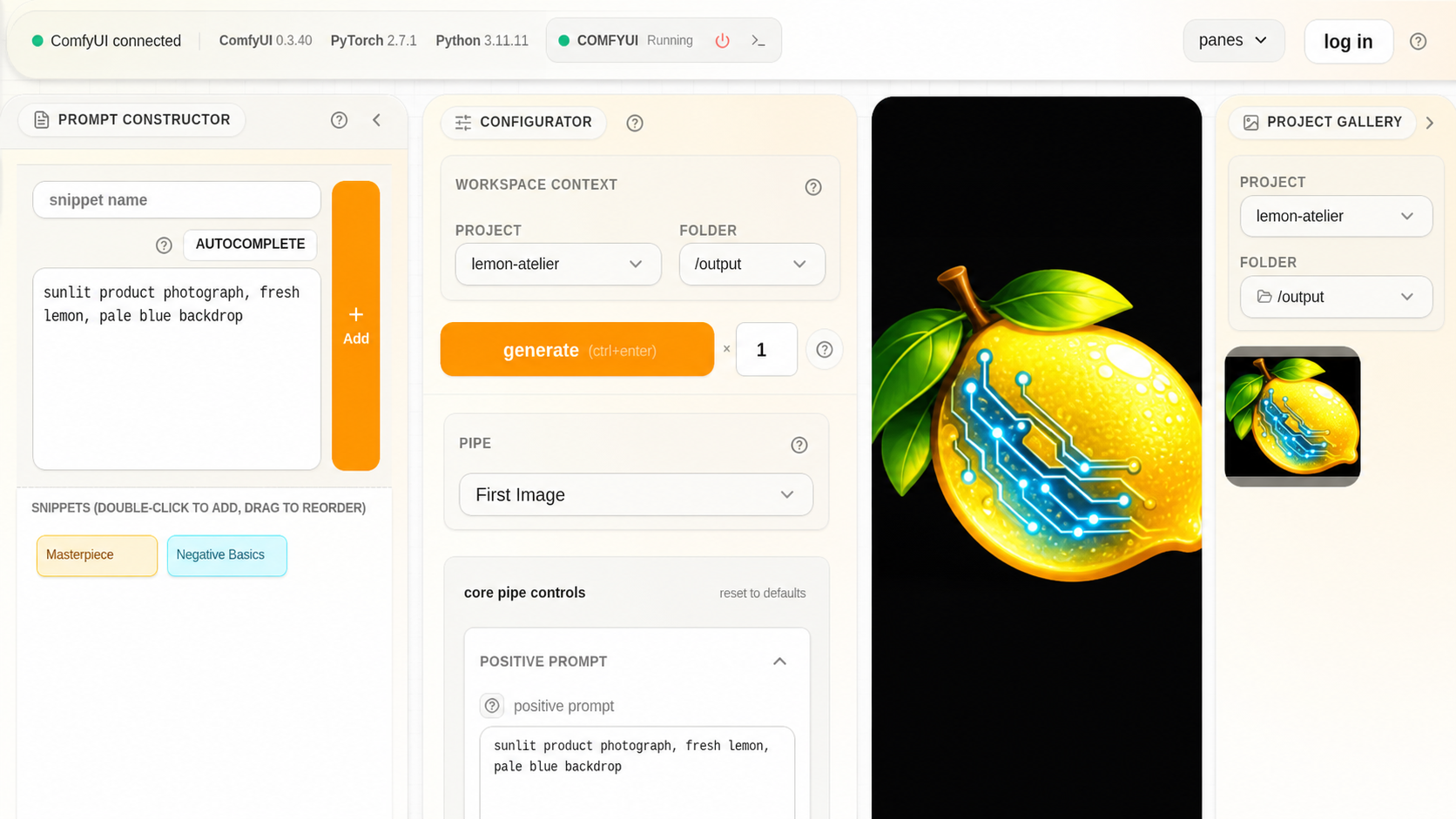
Prompt Studio is where you spend most of your time in Sweet Tea. It's the main workspace for selecting workflows, writing prompts, tuning parameters, and watching your images come to life. This chapter covers everything the workspace can do — from your first generation to power-user shortcuts.

Workspace Layout

Prompt Studio is organized into four zones that keep everything visible without overwhelming you:

Context controls (left side) — Choose your active project and select the Pipe you want to work with. Switching projects changes where outputs land; switching Pipes loads a completely different set of controls.

Dynamic form (center) — This is the heart of the workspace. The form is generated from your selected Pipe's workflow structure, showing you labeled controls for every parameter the workflow exposes. Core controls (prompts, resolution, steps) are front and center; advanced controls are tucked away but always accessible. See Dynamic Forms for the full breakdown of field types.

Generation feed (right side) — A live view of your queue and results. You can see jobs move through their states, preview completed images, and open results directly from here.

Status bar (bottom) — Engine health, connection state, and system-level signals. If something is wrong at the infrastructure level, this is where you'll notice first.

Running Your First Generation

Here's a concrete walkthrough with a real example:

  1. Confirm the status bar shows a healthy engine connection. If it doesn't, work through ComfyUI Integration first.
  2. Select a Project from the left panel — or create a new one. This determines where your output gets filed.
  3. Select a Pipe from the dropdown. Pick one you know works (if you're unsure, try a basic txt2img Pipe).
  4. In the main prompt field, type something with clear visual intent:
a cozy cabin in autumn fog, warm light spilling from the windows, cinematic composition
  1. Leave other settings at defaults for your first run.
  2. Click Generate.
  3. Watch the generation feed: your job moves through Queued → Running → Completed.
  4. Click the completed image to open it, or find it in Gallery.

Tip: Resist the urge to change many settings at once when experimenting. Change one thing — the prompt, the step count, the model — and compare. This makes it obvious what caused any change in output quality.

Generation States

Each job moves through a predictable set of states:

StateWhat it meansWhat to do
IdleReady for inputSet your parameters and hit Generate
QueuedWaiting for the engine to pick it upHold tight — avoid changing settings mid-queue
RunningActively generatingWatch the progress indicator; you may see a live preview
CompletedImage generated successfullyReview the result and its metadata
FailedSomething went wrongRead the error message before changing anything

Generation Readiness Checks

Before a run begins, Studio checks whether your setup can actually complete it. If something is missing or misconfigured, you'll see a readiness warning instead of a silent failure. These checks cover:

  • Engine health — Is ComfyUI connected and responsive?
  • Dependencies — Does the Pipe's workflow require nodes or models that aren't installed?
  • Storage — Is there enough disk space and are output paths accessible?

The warning messages include actionable language — they tell you what's wrong and where to fix it, rather than just saying "error." If a readiness check blocks you, follow its suggestion before retrying.

Tools You Might Not Know About

Prompt Studio has several features beyond the basic prompt-and-generate loop that can seriously speed up your work:

Quick prompt panel

A side panel for fast snippet insertion without leaving your current context. Open it, click a snippet, and it drops into your prompt. Great for adding consistent style language or quality suffixes.

Image drag-and-drop

For image-conditioned workflows (img2img, ControlNet, etc.), you can drag an image directly from your file manager into the media input field. No file picker needed.

Gallery-to-input reuse

Want to use a previous generation as the starting point for a new one? Drag an image from the Gallery directly into a Pipe's image input. This creates a fast feedback loop between generation and iteration.

Inpaint mask editor

When working with inpainting workflows, the built-in mask editor lets you paint regions directly on your image. No need for an external editor.

Canvas save and load

Working on a complex prompt setup you don't want to lose? Save the current canvas state and load it back later. You can have multiple saved states per Pipe.

Note: Canvas state persists even through route changes and restarts. If you navigate away from Prompt Studio and come back, your in-progress form should be right where you left it.

Undo and redo

Made a bad edit to your prompt or accidentally changed a slider? Ctrl+Z undoes the last change, Ctrl+Shift+Z redoes it. This works across prompt text and form field changes.

Working with Batches

Batch generation lets you queue multiple images in a single action — useful when you want to explore variations or build a collection quickly.

  1. Set your batch size in the form controls (start small — 2 or 4).
  2. Click Generate. Studio queues the full batch.
  3. Results appear in the generation feed as they complete.

Warning: Don't start with large batches. Get a single generation working cleanly first, then increase the batch size once you're confident in your settings. Canceling a large bad batch is better than waiting for it to finish.

To cancel an in-progress batch, use the cancel button in the generation feed. Studio will stop queuing new jobs from that batch.

Iteration Strategy

The fastest way to improve your results is controlled iteration — changing one thing at a time and comparing:

  1. Start with the prompt. Get the subject and composition right before tuning technical parameters.
  2. Adjust one control per run. If you change the model, steps, and CFG simultaneously and the output improves, you won't know which change helped.
  3. Use the Gallery for comparison. Open two variants side by side (or use arrow keys in the viewer to flip between them) to spot differences.
  4. Save winning states early. When you find a configuration that works, save it to the Prompt Library before continuing to experiment. This gives you a rollback point.

Tip: Keep notes (mental or written) when switching models or samplers. These are high-impact changes that can dramatically alter output character, and it's easy to lose track of what was working.

Keyboard Shortcuts

ShortcutAction
Ctrl+ZUndo last change
Ctrl+Shift+ZRedo
Enter (in prompt field)Generate (when focus is in the prompt area)
EscapeCancel current selection or close panel

Tip: The exact shortcuts may vary slightly by platform (macOS uses Cmd instead of Ctrl). Check the settings for a full shortcut reference.


Next: Dynamic Forms

PreviousComfyUI IntegrationNextDynamic Forms

On this page

  • Workspace Layout
  • Running Your First Generation
  • Generation States
  • Generation Readiness Checks
  • Tools You Might Not Know About
  • Working with Batches
  • Iteration Strategy
  • Keyboard Shortcuts