
Curate Gallery
Curate Gallery
Keep the strongest work, move finalists together, and send obvious misses to trash without making the decision permanent too soon.
<!-- guide:excerpt id="gallery_selection_tools" -->Selection mode applies an action to everything you select. Cleanup mode works differently: you select the images or clips to keep, and Studio moves the rest of the current group toward trash. Always review the selection and current Project or folder before confirming.
<!-- /guide:excerpt -->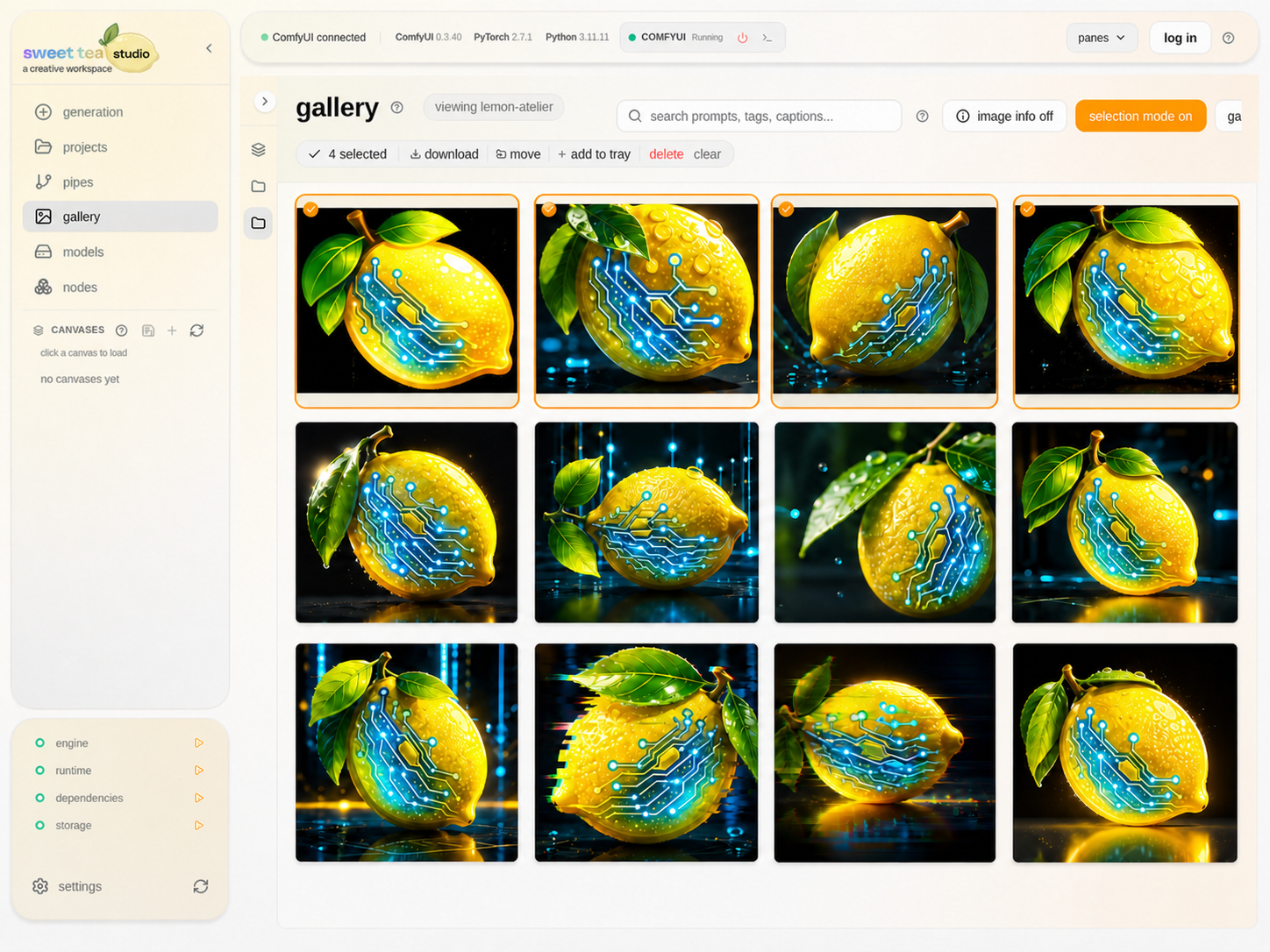
Four selected finalists stay clearly marked while the rest of the run remains visible for comparison.
Curate a run
- Narrow Gallery to the run or folder.
- Enter selection mode.
- Open uncertain items at full size.
- Select the work that meets the creative goal.
- Move finalists to a named folder, reuse them, or send misses to trash.
- Review the confirmation and complete the action.
- Leave trash intact until you are sure.
Build a shortlist
Use a named folder such as finals for the work you want to keep together. Use Media Tray for a temporary comparison while you move between Studio screens.
Recover a mistake
Open Project trash, identify the item by its preview and folder, and restore it before emptying trash or removing files outside Studio.