
Edit Pipe Controls
Edit Pipe Controls
Turn a valid workflow graph into an interface that makes the creator’s real decisions clear.
Before you start
Revalidate the Pipe and understand its named outputs. Schema editing changes presentation and mapped inputs; graph repair belongs in the workflow itself.
<!-- guide:excerpt id="pipe_editor" -->The Pipe editor can rename the Pipe, label nodes and fields, choose visibility, place controls in Core or Expanded, reorder every graph node, name and order output channels, configure caption targets, and add or toggle standard bypass controls. Saving synchronizes the creator-facing schema with the current graph.
<!-- /guide:excerpt -->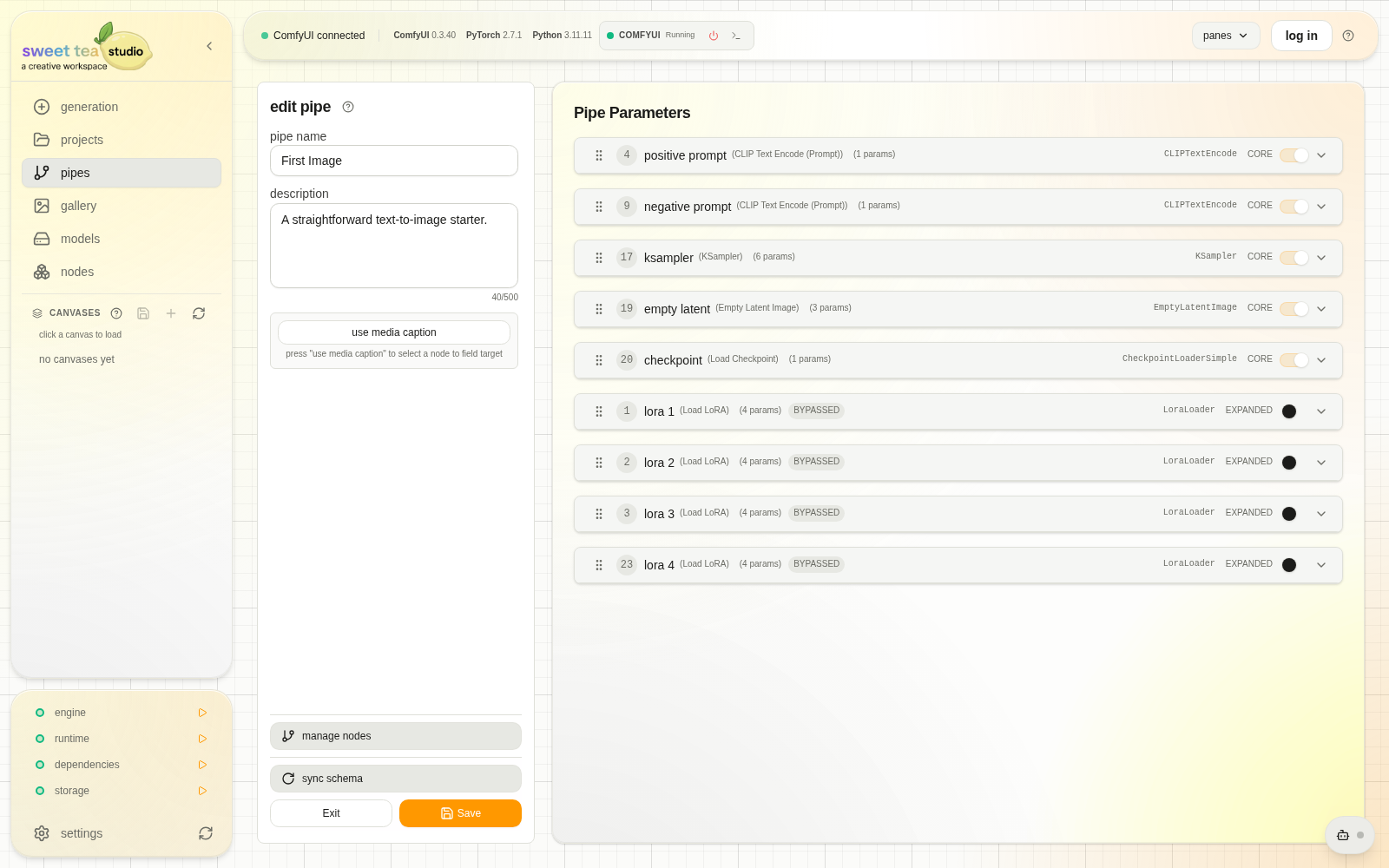
Expose the choices a creator needs, not every technical detail.
Shape the interface
- Name the Pipe for its outcome.
- Label the graph nodes that help a creator understand stages.
- Expose required and frequently changed fields.
- Put the smallest complete path in Core.
- Put deliberate variation in Expanded.
- Order controls in decision order.
- Add standard bypass controls only where the graph supports them.
- Save, revalidate, and run a baseline.
Prepare the schema with an agent
An authorized agent can inspect and stage pipe.setup:
- Read every
pipe.inspectpage, following the opaque cursor untilhas_moreis false. - Run
dependencies.inspect. - Stage
pipe.setupwith the complete presentation proposal. - Show the Studio approval and stop.
The proposal can rename, label, group, show or hide, reorder every graph node, and add standard bypass controls including bypassed-by-default. It preserves ordinary workflow values, defaults, graph inputs, and all terminal output nodes. Missing dependencies are reported separately; pipe.setup never installs them.
Studio validates and stages the proposal. Approval and run apply it. Creative staging includes the proposal capability; dependency installation requires Build & configure. If the Pipe changes after inspection, the agent must re-inspect and prepare a fresh proposal.
Related docs
Compose output channels
Connect named outputs to compatible downstream inputs. Connect can fan one output into several inputs or connect different outputs to different inputs. Collect combines selected IMAGE channels into an ordered batch using the installed ImageBatch node; ComfyUI resizes later images to the first image’s dimensions. Apply to each creates a downstream stage for each selected channel. IMAGE channels use the installed RebatchImages operation to send each image through that stage, including batches whose size is determined during execution. Source saving nodes remain in the composed Pipe. Regenerate runs the whole Pipe, including all output channels.